Workspace Settings
**Workspace Settings** allows you to manage team members, billing, integrations, email domains, Customer Portal, and more.
Workspace Settings allows you to manage team members, billing, integrations, email domains, Customer Portal, and more.
Let's explore each section and see how you can optimize Sponsy for your business.
Exploring Workspace Settings
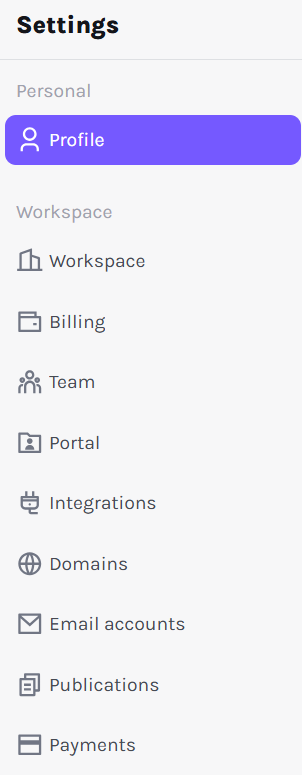
To access Workspace Settings, click Settings on the left sidebar (⚙️). Here, you'll find two categories:
- Personal: Includes the Profile tab, where you manage your personal details.
- Workspace: Houses multiple tabs for configuring organizational settings, including Workspace, Billing, Team, Portal, Integrations, Domains, Email Accounts, Publications, and Payments.
1. Profile
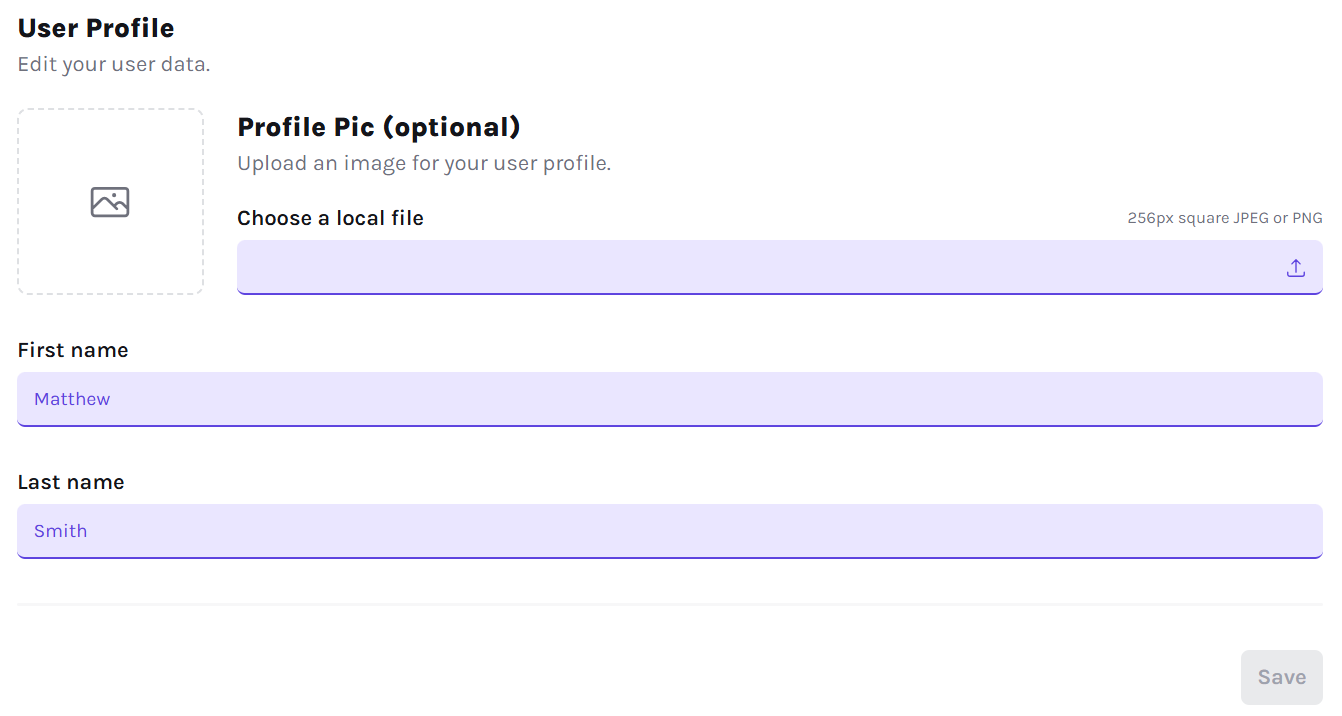
Your Profile tab contains personal settings (profile picture and name). This information appears for your team within Sponsy and in the customer portal comments.
Tip: Use a clear and recognizable profile picture so your colleagues and clients can easily identify you!
2. Workspace
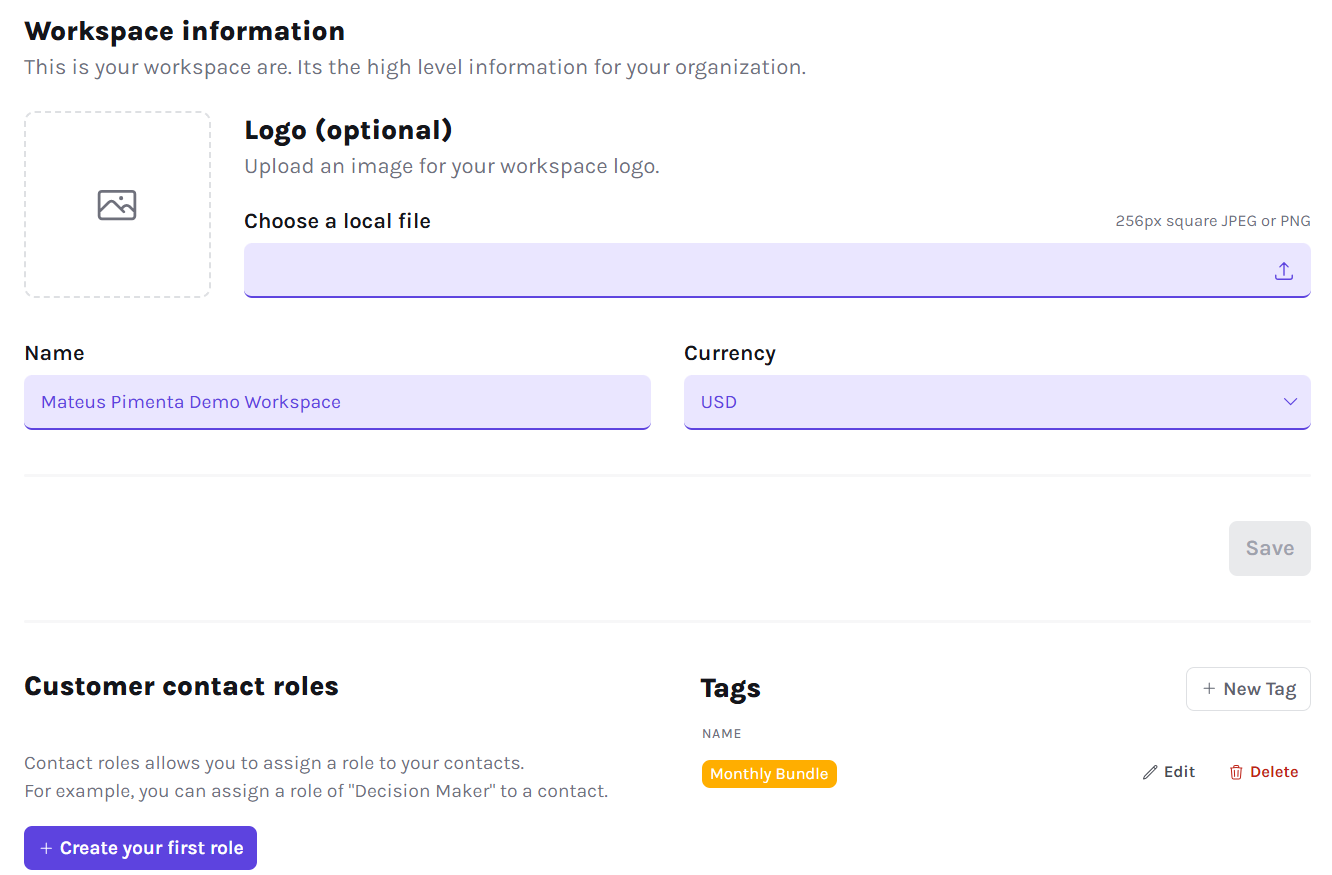
The Workspace tab contains settings for your company's Sponsy environment: Logo, Name, Currency, and Roles & Tags.
Under Tags, use Edit to rename a tag or change its color, and Delete to remove an obsolete tag from the workspace. The confirmation names the tag you are deleting. Deleted tags no longer appear on slots or deal items; the bookings themselves are kept.
You can also open a booking's tag picker and click Manage tags. Workspace settings opens in a new tab, so your current booking form stays open. These actions follow your team's tag permissions. Removing a tag from one booking only changes that booking; deleting it in settings removes it across the workspace.
3. Billing
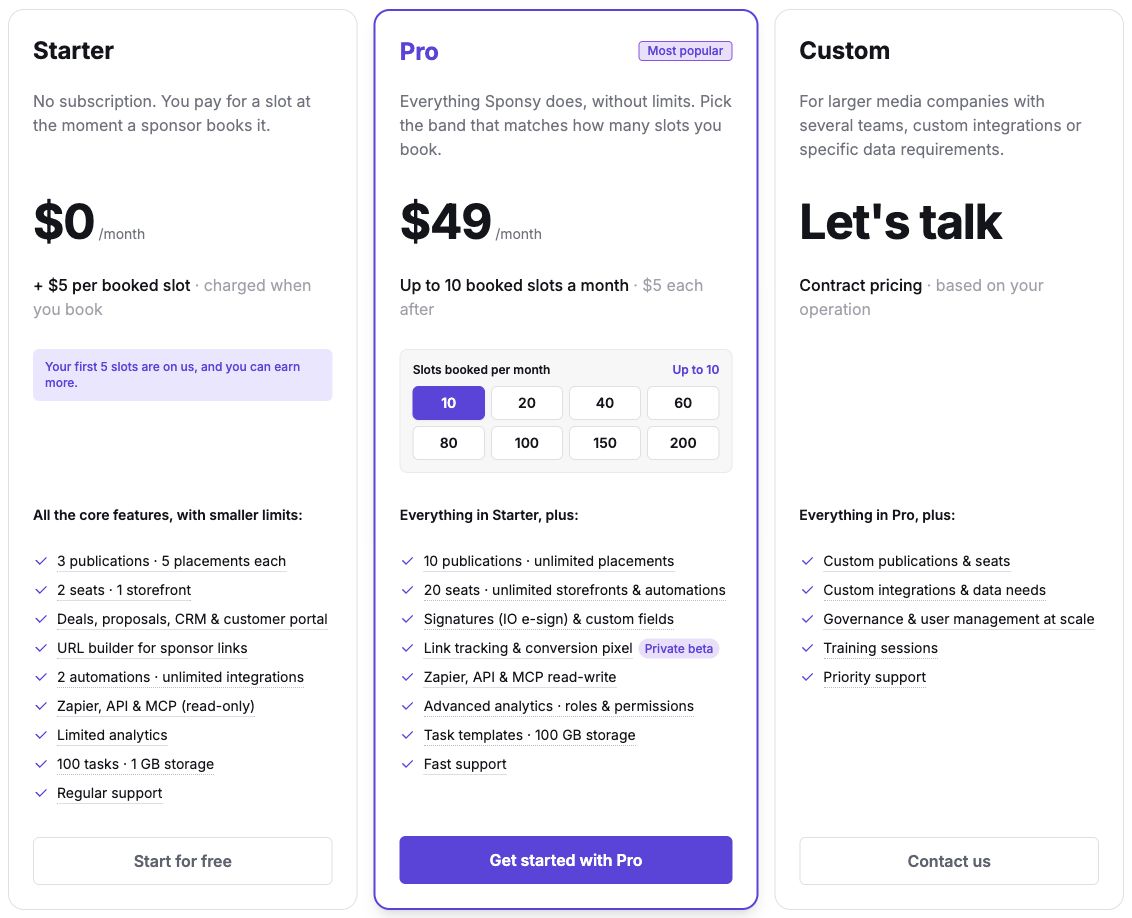
The Billing section shows your current plan, usage, and upgrade options. Sponsy has three plans: Starter, Pro, and Custom. See Pricing for the current prices and a full comparison.
Starter has no monthly fee. Your first five booked slots are included, then each booked slot costs $5. Pro has a monthly allowance of booked slots based on your chosen band, with $5 per slot beyond that allowance. Custom uses contract pricing.
Inventory, Deals and proposals, CRM, the Customer Portal, Storefront, automations, manual tasks, the URL builder, and native integrations are available on every plan. The main usage limits are:
| Usage | Starter | Pro | Custom |
| Active publications | 3 | 10 | Agreed allowance |
| Placements per publication | 5 | Unlimited | Unlimited |
| Team seats | 2 | 20 | Agreed allowance |
| Storefronts | 1 | Unlimited | Unlimited |
| Active automations | 2 | Unlimited | Unlimited |
| Unarchived tasks | 100 | Unlimited | Unlimited |
| Storage | 1 GB | 100 GB | Agreed allowance |
| Native integration connections | Unlimited | Unlimited | Unlimited |
| Zapier, API, and MCP | Read-only | Read-write | Read-write |
| Analytics history | Last 30 days | Full history | Full history |
Seats include the workspace owner and pending invitations. Completed tasks count until archived; disabled automations do not count toward the active automation limit. Placement groups count as one placement.
Pro and Custom also include publication and customer custom fields, insertion-order e-signatures, role and permission customization, task templates, analytics comparisons, exports, and report sharing. Deal custom fields are available on every plan. Link and conversion tracking remain in private beta for Pro and Custom; contact Sponsy to request access. REST API v2 and MCP also require their respective beta access.
If you upgraded and your bank shows a pending charge while Sponsy still asks you to upgrade, wait a few minutes and hard refresh the browser tab. Sponsy may briefly show cached subscription details while the payment is processed. A pending bank charge is an authorization, so your plan will not change until the payment is confirmed. Do not start another checkout while the first charge is pending. If Sponsy still shows the old plan after 10 minutes, contact support.
4. Team
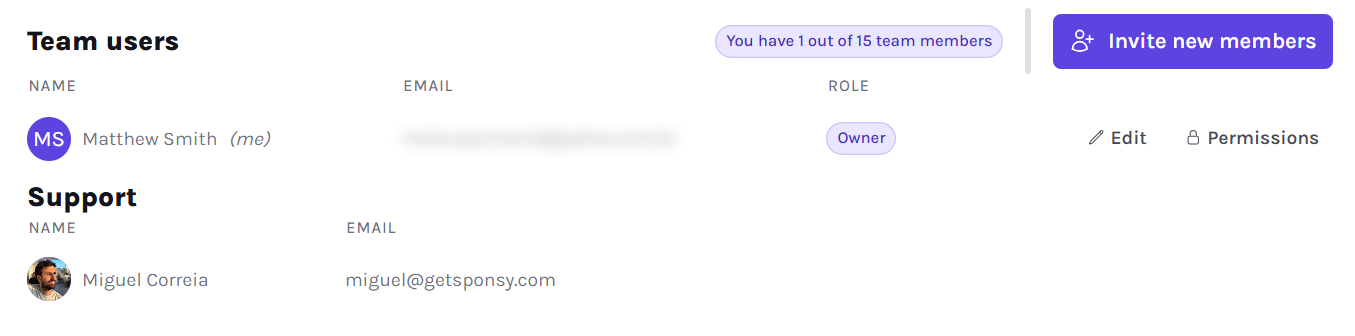
Use Edit beside a member to mark them as a Sales rep. Enable Only show sales reps in sales rep dropdowns above the team list to restrict those dropdowns across the workspace. Existing assignments are kept. See Sales reps for setup details.
The Team tab is where you invite members, edit their details, and restrict publication access within your plan's seat allowance. On Pro and Custom, you can also assign roles and configure individual permissions. See Team Management for the details.
5. Portal
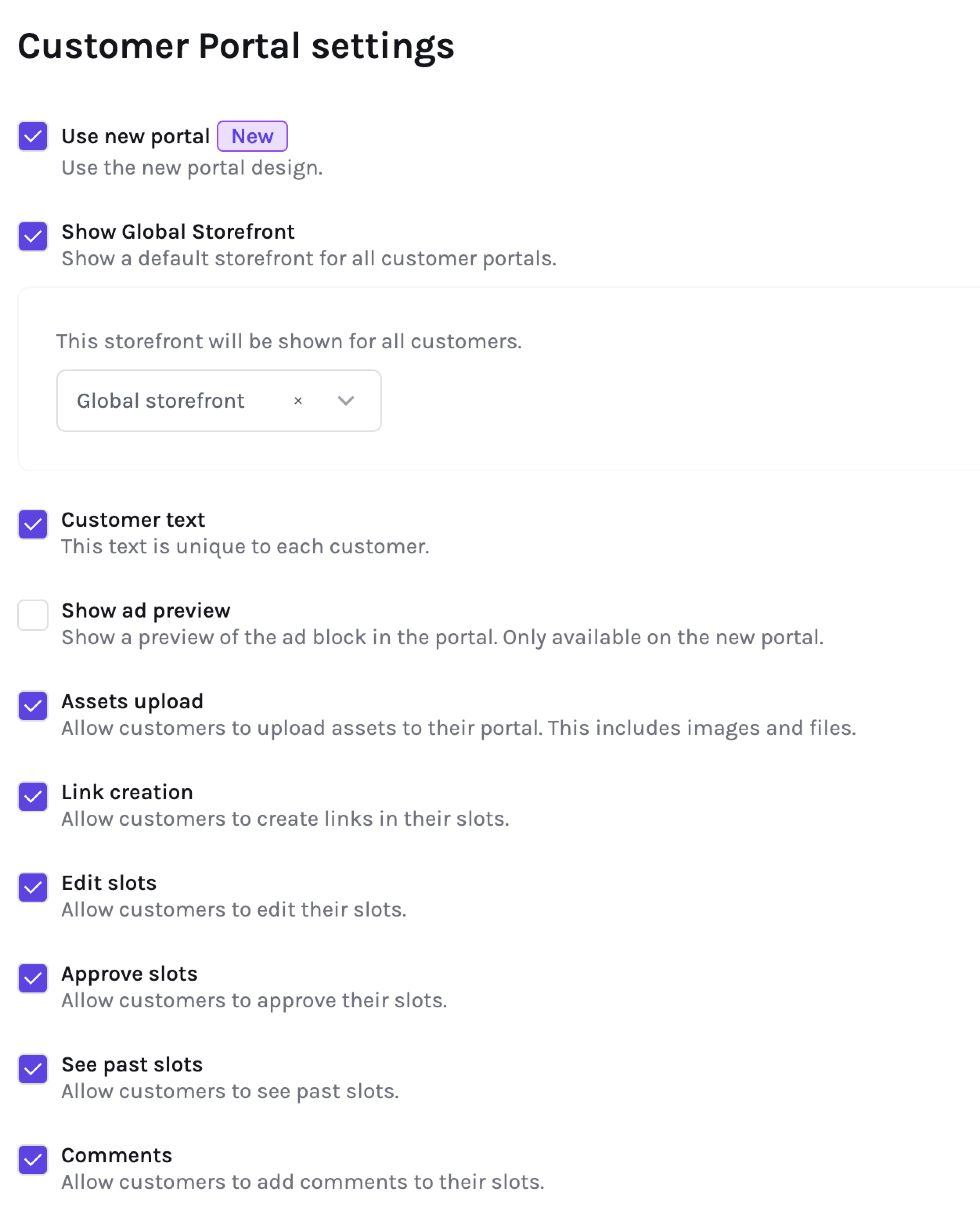
The Portal settings allow you to configure what your clients see when they access Sponsy. For example, you can decide which metrics are visible to customers, enable or disable comments, show or hide deal names on slots, choose customer contact points, and scope report access per customer.
Under Portal → Permissions, enable Approve slots when customers should approve finished content. You can then enable Prompt to approve after saving to show an optional review step after a valid content save. The prompt includes the saved content and the ad preview when portal previews are configured. It is disabled by default and only appears once per slot until the page is refreshed.
Best practice: Keep key sponsorship metrics visible to enhance trust with your clients while limiting access to sensitive internal data.
6. Integrations
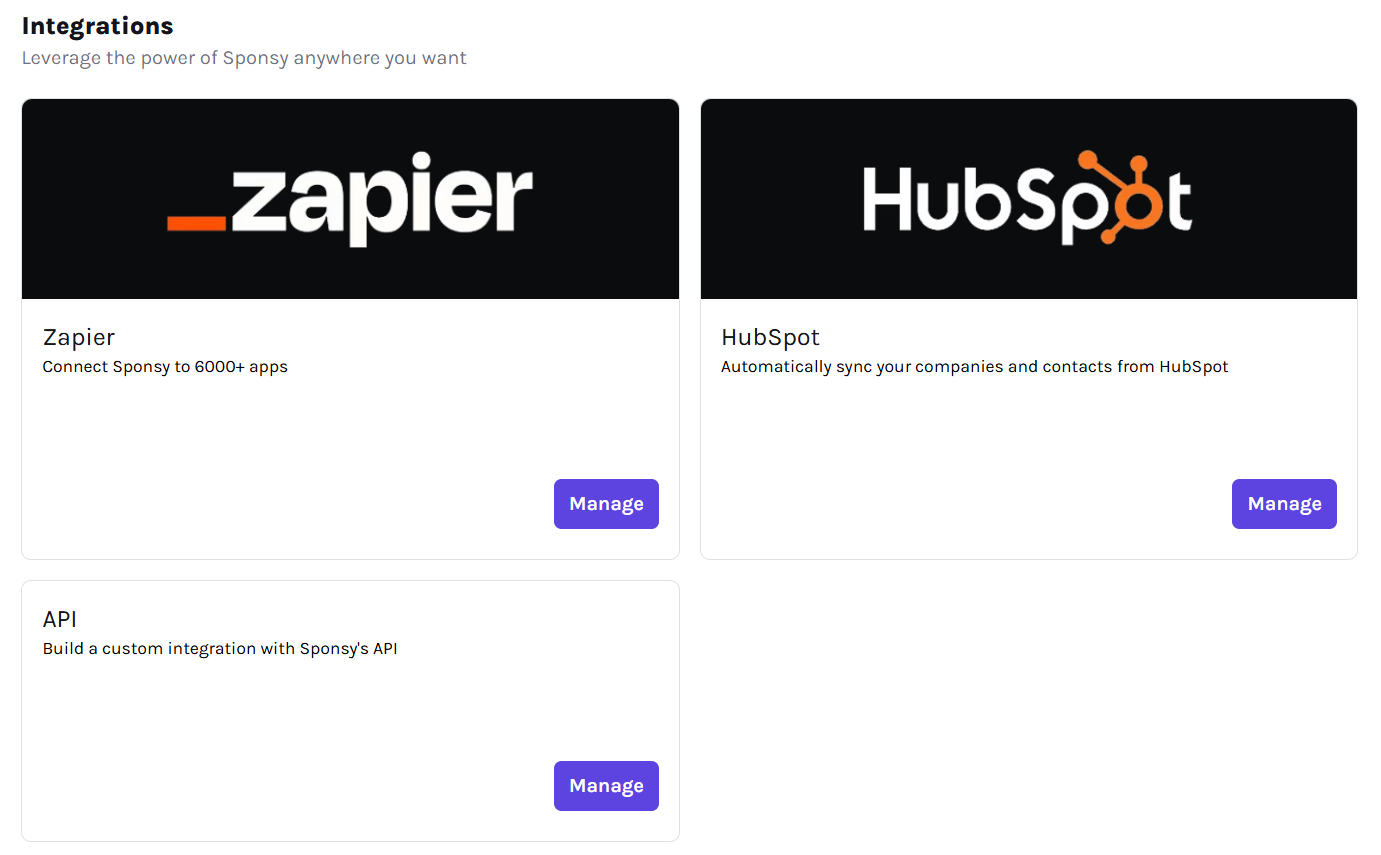
Sponsy integrates with third-party platforms, including CRMs, ESPs (Email Service Providers), Slack, Stripe, Zapier, and other reporting or workflow tools.
Native integrations are available on every plan, with unlimited connections. Starter's read-only limit applies to Zapier, API, and MCP access; writing Sponsy records through those tools requires Pro or Custom.
In this tab, you can connect external tools such as HubSpot, Pipedrive, beehiiv, Mailchimp, Klaviyo, Delivra, FluentCRM, Slack, Stripe, and Zapier. Some integrations sync metrics, some create customers and deals, and others send notifications or support payments.
7. Domains
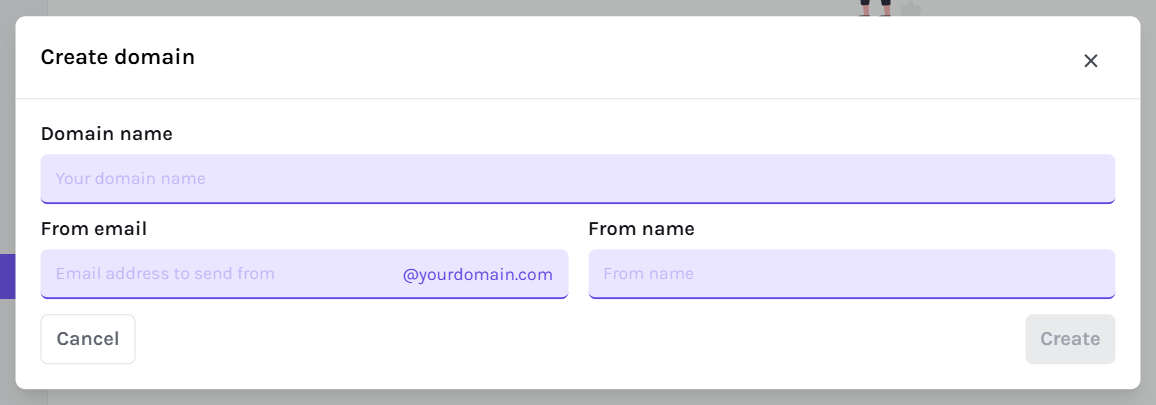
Connect and verify a custom domain to send customer-facing emails from your company's address. Storefront emails and customer report downloads use your verified primary domain; publication and deal emails can use their own selected domains. Account and internal system notifications still come from Sponsy. See Custom domains for sender and reply settings.
8. Email Accounts
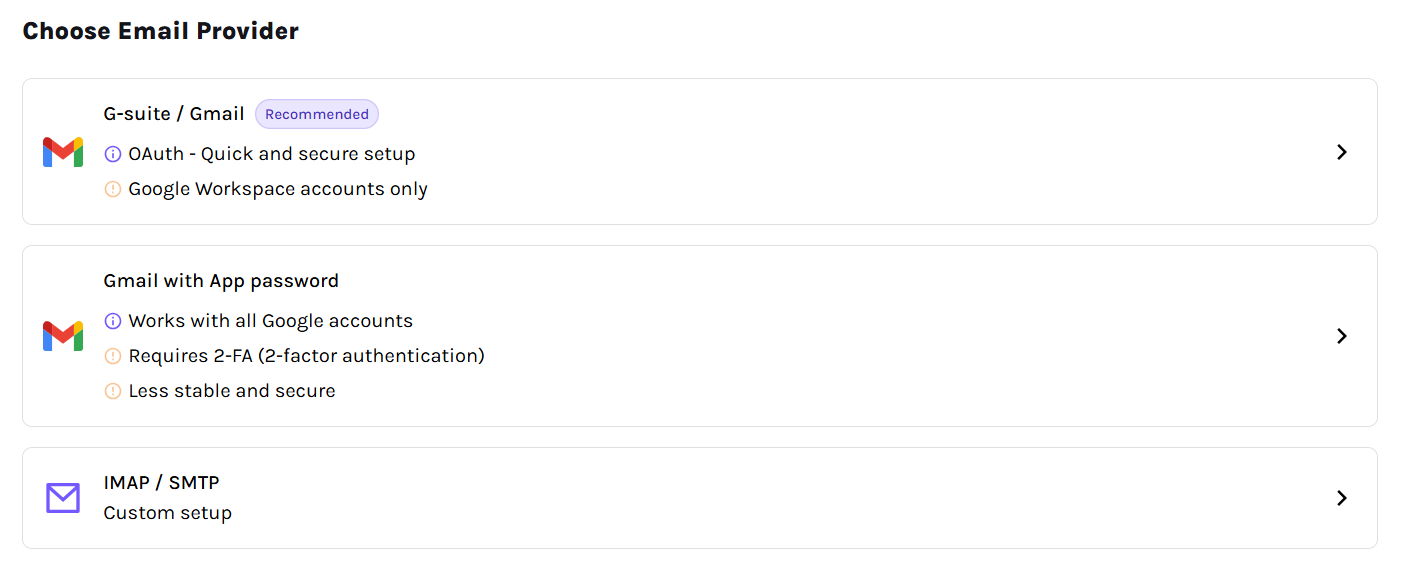
The Email Accounts tab lets you link corporate email addresses to Sponsy. This way, all emails related to sponsorships, payments, and contracts are managed centrally.
9. Publications
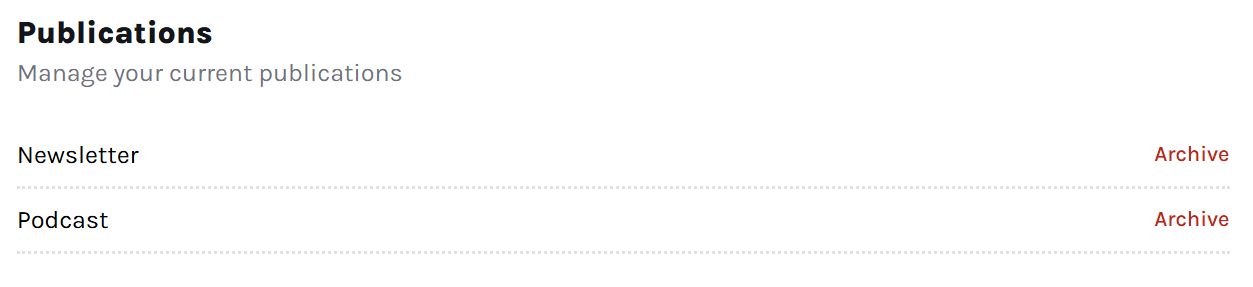
Here, you can duplicate or archive active publications and restore archived publications.
To duplicate a publication, open Settings → Publications, find the active publication you want to copy, and click Duplicate next to its name. If the publication is archived, restore it first.
10. Payments
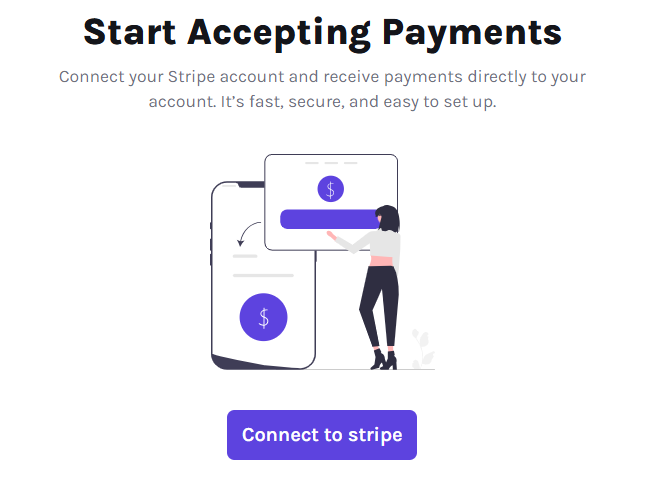
The Payments tab allows you to connect Stripe, enabling direct payments via Sponsy. This makes it easy for sponsors to pay you.
Contacts and CSV import
Customer contacts can be created one at a time or imported in bulk from a CSV file. Use bulk import when you are migrating contacts from a CRM, spreadsheet, or sales list.
To import contacts, open the customer or contact management area, choose the CSV import option, upload your file, and review the detected fields before confirming the import.
Prepare your CSV with one contact per row. Include the customer's name or identifier when contacts should be attached to existing customers, and include contact fields such as first name, last name, email, title, and any custom fields your workspace uses.
After importing, contacts appear on the relevant customer records and can be used as portal contacts, deal contacts, proposal recipients, and automation recipients. If you are adding several contacts manually, use Create another to keep the form open after each save.
Tips & Best Practices
✅ Connect your domains: Send emails from your own address to improve recognition and trust with advertisers.
✅ Take advantage of integrations: Automate tasks and improve efficiency by connecting Sponsy to your existing tools.
✅ Optimize the Customer Portal: Customize what your clients see to provide all the information they need.