Customer Portal
The Customer Portal is a unique, private page designed to make collaboration with your advertisers seamless. Think of it like a Google Doc — anyone with the link can access it, no login needed.
The Customer Portal is a unique, private page designed to make collaboration with your advertisers seamless. Think of it like a Google Doc — anyone with the link can access it, no login needed.
It’s fully configurable and built to give your advertisers a great experience: they can view booked slots, upload assets, check metrics, comment, and more — all in one place.
✨ Key Features
- No login required — frictionless access
- One link per customer
- Fully customizable per customer
- Central hub for content, metrics, and communication
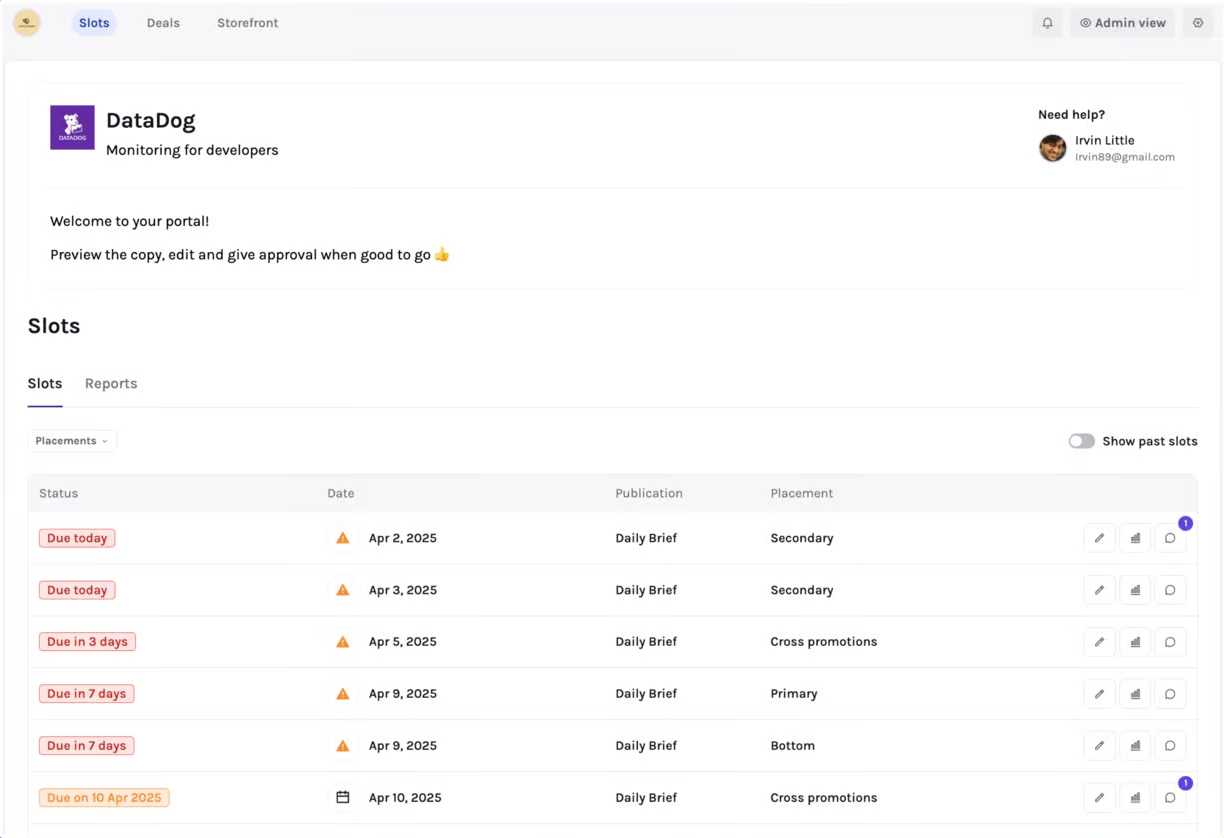
Slots
The default landing section of the portal — here your advertiser can manage their upcoming, current, and past bookings.
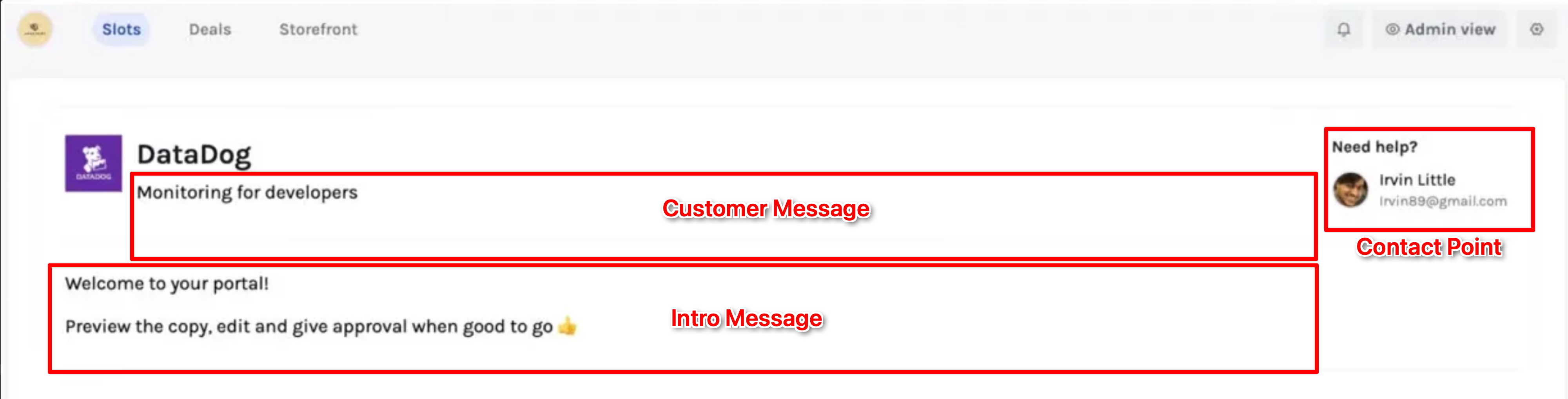
Intro Message
Here you can customize a welcome message to all your advertisers. This section is shared across all your portals and is often used to welcome advertisers and provide instructions on how to proceed. You can tailor this to provide the best experience.
Tip: Use this space to give clear next steps or a personal touch!
Contact Point
For each customer, you can customize a contact point in your team that can be reached in case any extra help is needed. This is optional — if no person is selected, nothing will be shown.
Customer Message
Here you can customize a message specific to each customer. You can add details from the campaign or the briefing. This is also an optional field.
Filters
Let your customers narrow down their view by:
- Publication
- Placement
- Slot status (e.g. hide/show past slots)
Past slots are those with a slot date older than today.

Slots Table
Each row represents a booked slot. Customers can:
- Click the row to open and edit the slot
- View metrics (if enabled)
- Leave comments (if enabled)
- See the related deal name (if enabled)
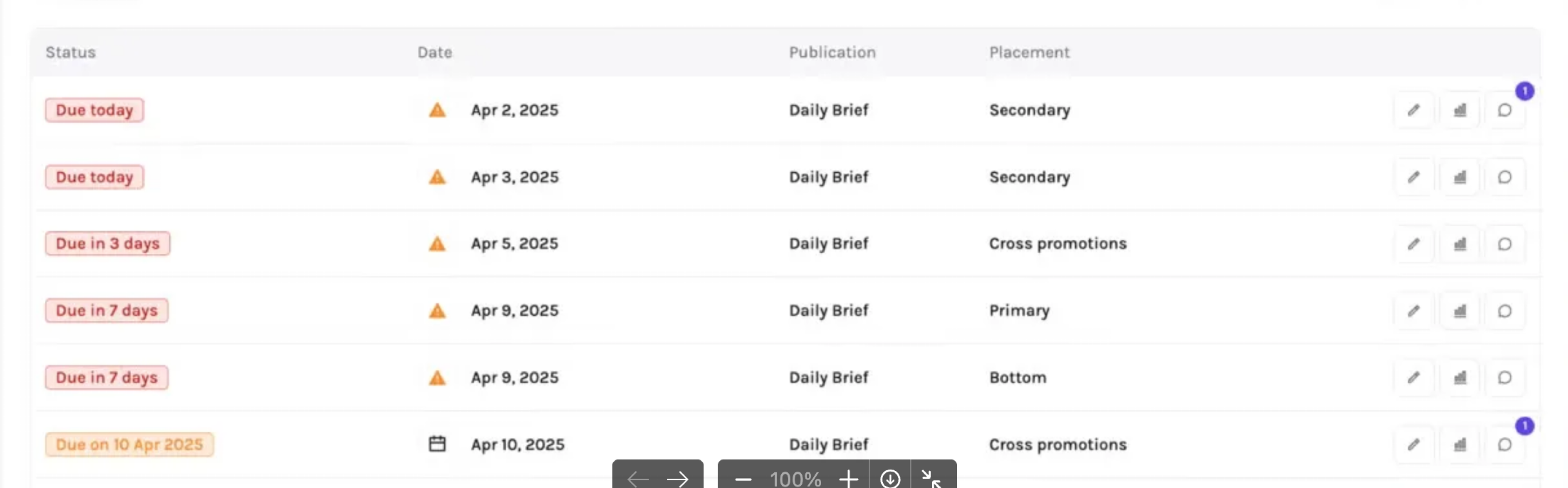
Past slots are sorted newest first, so recently completed work stays easy to find.
Submission Status and asset deadlines
The Submission Status column describes the content and completion state of each slot:
- Awaiting assets: Required content is still missing, or no content has been submitted.
- Assets submitted: All required customer-visible content fields are filled. Optional notes alone do not complete a submission when required assets are still missing.
- Approved: The slot's content has been approved.
- Completed: The slot has a status configured to mark it as completed. A past run date alone does not complete a slot. Moving it back to a status such as Reserved updates its progress.
Private fields and fields marked Don't count as submitted content do not block asset readiness. Required fields inside a repeated field group must be filled for each instance, and the group's minimum number of instances must be met. If a placement has no required fields, a filled content field, public extra file, or extra link counts as a submission. Mark helper questions and notes that should not count as content with Don't count as submitted content in the placement settings.
You can show or hide Submission Status with Show submission status column in the portal's Slots table settings. The optional Slot Deployment Status column shows your configured workflow status, such as Gathering assets or Sent. Its visibility is controlled separately in the same settings.
In publication settings, edit a slot status and turn on Marks slots as completed for the end of your workflow. Agencies can configure the same option on workspace slot statuses. Existing statuses named Deployed or Completed have this enabled automatically; other custom names can be configured explicitly.
Run date and Assets due
Run date shows when the ad is booked to run. Website placements can show a date range.
Assets due sits immediately to the right of Submission Status and shows the submission deadline separately. While assets are missing, deadlines within 10 days have a blue reminder. A missed deadline has a red reminder that says Assets overdue by X days. Submitted, approved and completed slots keep their deadline visible without an overdue warning. If no deadline is configured, the column shows No deadline set.
Publication & Placement
These columns show the names of the respective publication and placement the slot has been booked in.
Actions
Use Submit assets to open a slot with missing content, or Review assets once its required content is filled. The action uses red for overdue submissions, blue for deadlines within 10 days, and purple for submitted assets. Approved or completed slots, and portals with editing disabled, show View assets.
The metrics and comments buttons have clear labels and remain optional in portal settings. Opening a slot from a deal keeps a link back to that deal. On a phone, scroll the table horizontally to reach all columns and actions.
Slot
Each slot has its own page — here advertisers manage content, approve it, see metrics, or leave comments.
Content
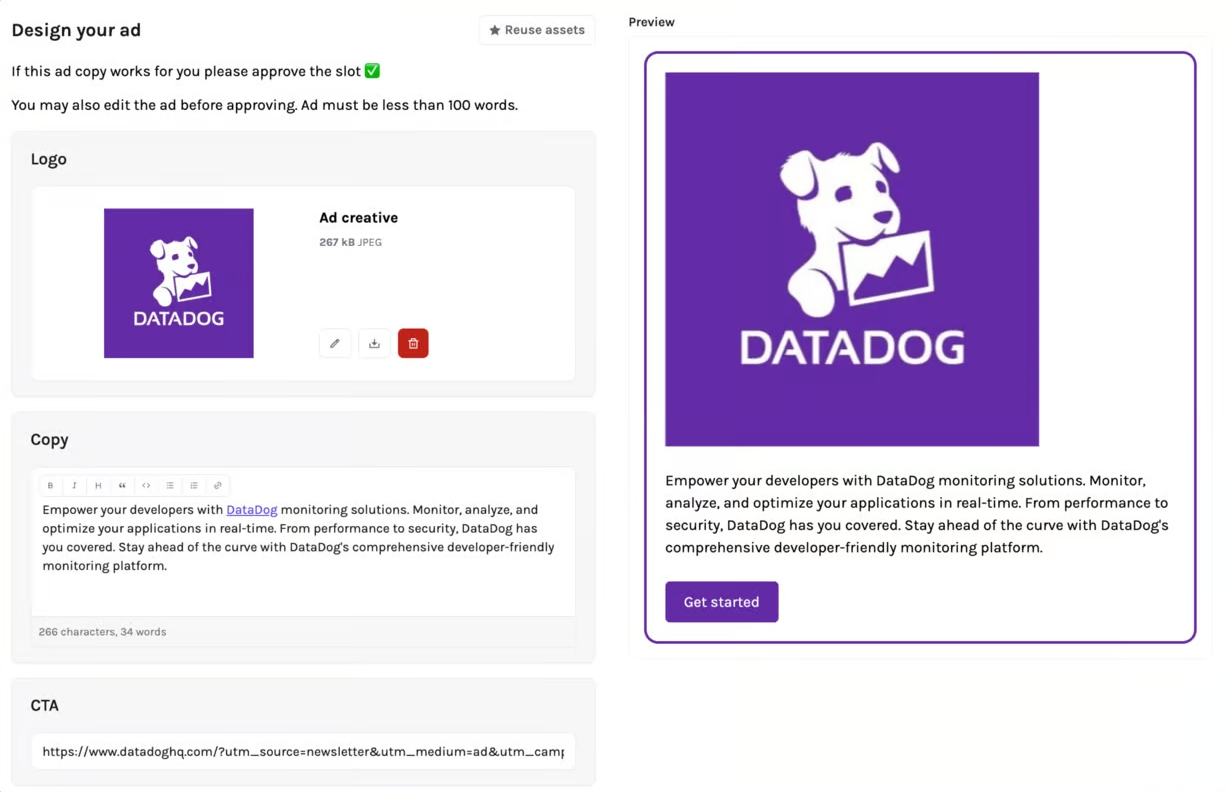
At the top of the page, you can include an optional placement helper text — often used to provide specific instructions for this placement. This can include things like how to fill out the content, formatting requirements, specs, etc.
On the top right corner, your customer will see the option to approve the slot.
Once approved, the slot becomes locked — meaning they can no longer make any changes.
Once a slot is approved, the customer can’t edit it anymore — but you can always revoke the approval as an admin if needed.
You can also turn on an approval reminder for completed content. After a valid content form is saved, Sponsy shows the saved fields and, when configured, the ad preview. The portal user can approve the slot directly or choose Skip for now. The reminder appears once per slot until the page is refreshed, so it does not interrupt every save.
There’s also a handy Reuse assets option. This lets advertisers pull in assets from any of their previous slots and reuse them for this one — saving time and effort.
All the fields shown come from the placement settings in your publication. You can configure field limitations (e.g. image size, max character/word counts, etc.), organize related fields into groups, and use structured fields like single select, multi-select, and collection fields when you need consistent answers from customers.
Finally, at the bottom, there's an Extra assets box where customers can upload additional files or drop in links if needed.
Metrics
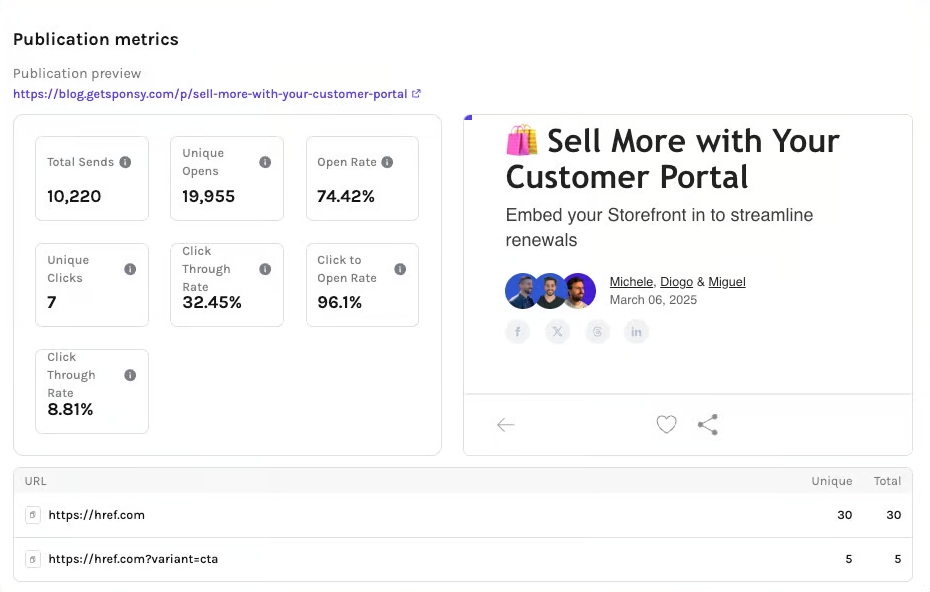
Here you can show post-performance metrics for a slot. In the settings, you can choose which metrics to show your customer.
If you'd like, you can also show a preview of the publication on the right-hand side, so the customer can see how the final ad looked in context.
Preview feature only works with certain ESPs.
Comments
A shared space for you and the advertiser to collaborate. You can tag people on your team or people from the customer's contacts by typing @ and selecting someone from the list.
This ensures they’ll receive the comment and keeps everything organized within the context of the slot.
Reports
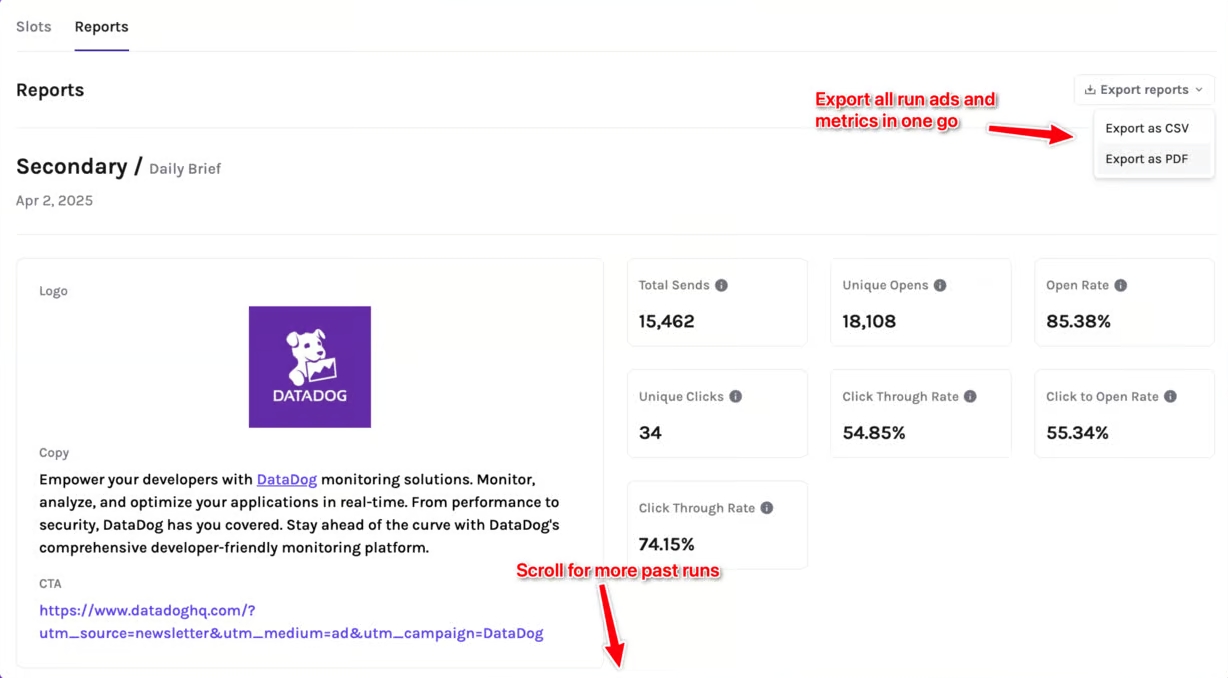
The Reports tab brings everything performance-related into one place: campaign reports shared per deal at the top, and the advertiser's slot reports below.
Campaign reports
A campaign report is a live, deal-level report you share from the deal's Metrics tab — see Sharing a campaign report. It rolls the whole campaign up into summary KPIs, a clicks-by-slot chart, a publication breakdown, and a per-slot breakdown. It's live: booked slots that haven't run yet appear as placeholders and fill in automatically after each send, so there's nothing to re-send when the campaign progresses.

You control which sections the advertiser sees — and whether pricing (investment, cost, CPC, CPM) is included — when you share the report. Advertisers can also download the report as a PDF.
Slot reports
Every past slot with metrics appears here, with two views:
- Content — a card per slot showing a miniature of the ad that ran next to its key stats.
- List — a compact table for scanning many slots at once.

Clicking a slot opens its full slot report: the content as sent, all its metrics, and a clicks-by-URL breakdown. If the slot's deal has a shared campaign report, the slot report links straight to it.
Slot reports can also be exported as a CSV or emailed as a PDF — great for wrap-up reports.
Portal report access can be scoped per customer. Use this when one advertiser should see their full reporting view while another customer should only see slots, content, or limited metrics. The metrics shown everywhere — including inside campaign reports — always respect the portal's Metrics & reports visibility settings.
Deals
If a deal is marked public in your admin dashboard, it appears here. The list shows each deal's items, flight dates, fulfillment progress, and total (when totals are visible for the portal).
Opening a deal shows:
- A summary row with the deal's total value, fulfillment progress, next upcoming slot, and flight dates
- A Downloads section: the insertion order (PDF), the slot schedule (CSV), and the campaign report when one is shared
- Sales agents and main contacts, with names and email addresses when Sales agent and main point of contact is enabled
- Booked slots with the same Submission Status, asset deadlines, run dates and actions as the Slots page
- Optional Slot Deployment Status showing each slot's configured workflow status when that setting is enabled
- Unbooked slots, with prices when item prices are visible
- Comments, to ask questions directly on the deal
Deals are perfect for multi-slot or long-term agreements.
The downloaded insertion order uses the columns and details configured under Settings → Customer portal → Deals. You can choose Platform and Volume sources, keep targeting separate from notes, and include selected collection properties such as discount values and dates. See insertion order columns and details for setup and privacy behavior.

For agency or parent-child customer relationships, portal visibility can include slots from child customers when that access is enabled. This lets an agency or parent customer review related bookings without giving every advertiser the same portal view.
Storefront
Want to let advertisers book more slots on their own?
- You can enable a storefront directly in the customer portal
- Use a global storefront, or create a customer-specific one with tailored inventory and pricing for this customer
Portal Settings
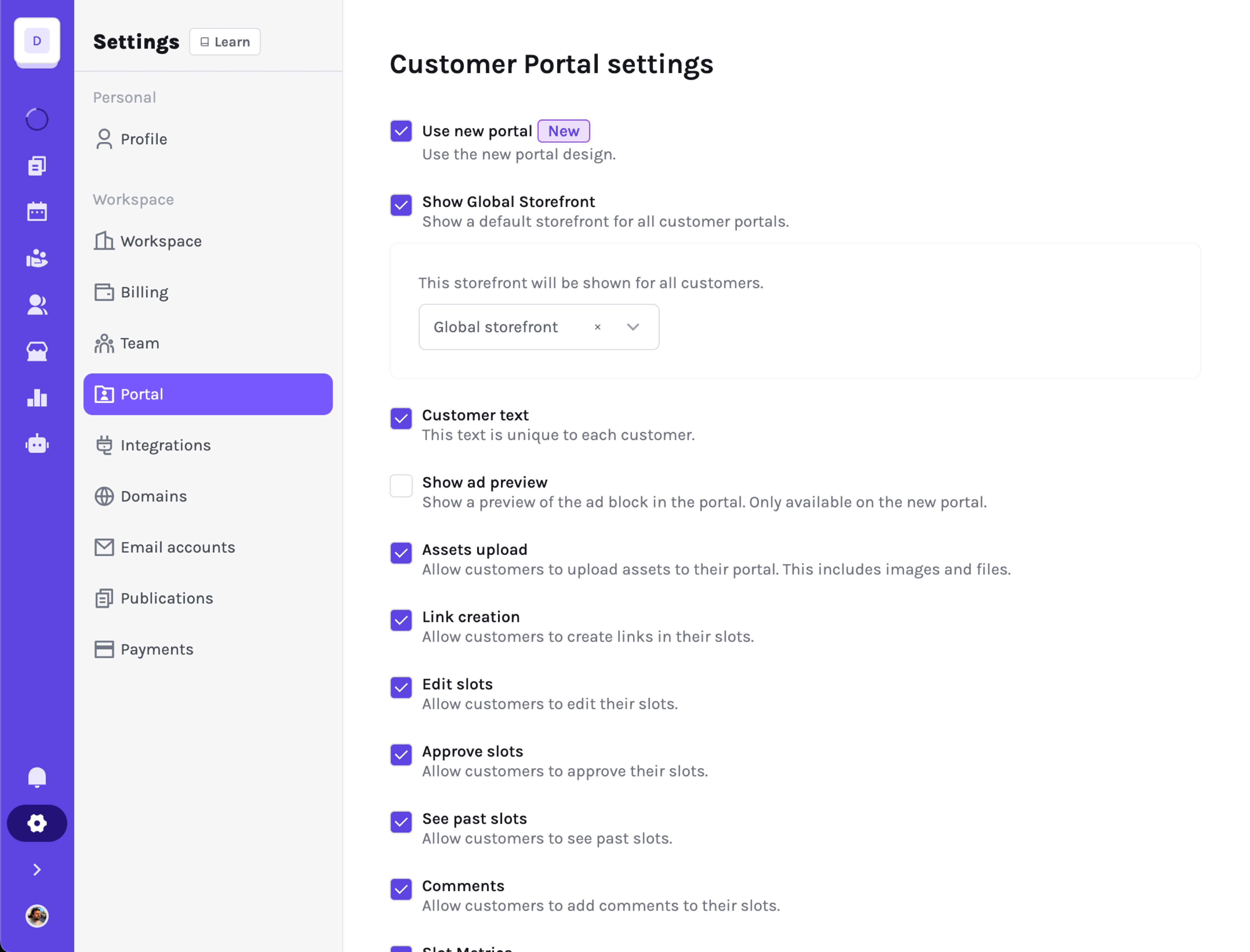
You can manage all your portal settings from the Workspace Settings.
From here, you can:
- Toggle what is visible (or hidden) in your customer portals
- Set the default intro message that shows up at the top of every portal
- Choose whether deal names appear next to portal slots
- Show or hide deal contacts, slot statuses and progress independently
- Set the default customer contact point shown in the portal
- Prompt portal users to review and approve complete content after saving
- Control whether customers can access reports, metrics, comments, deals, or storefronts
Everything is configurable — so you can tailor the experience to fit your workflow and customer needs.
If you're logged in, you can edit the settings directly from any portal by clicking the ⚙️ icon in the top right corner. This lets you preview changes in real time and see exactly how they affect the portal.
You can toggle betweenAdmin viewandCustomer viewusing the button in the top right corner. This lets you preview exactly how the customer sees the portal. The Admin view gives you extra functionality — like inline editing for many fields and quick access to admin links and actions — to make managing everything easier.